This guide walks the full Foundry AssetHub path using one concrete story: Harbourline Estates owns three sites and cannot say what is inside them. You will see what each destination and stage is for, why it exists, and how Harbourline uses it, with metaphors and diagrams along the way.
Harbourline Estates is a fictional company, and its figures are illustrative. It isn't a customer.
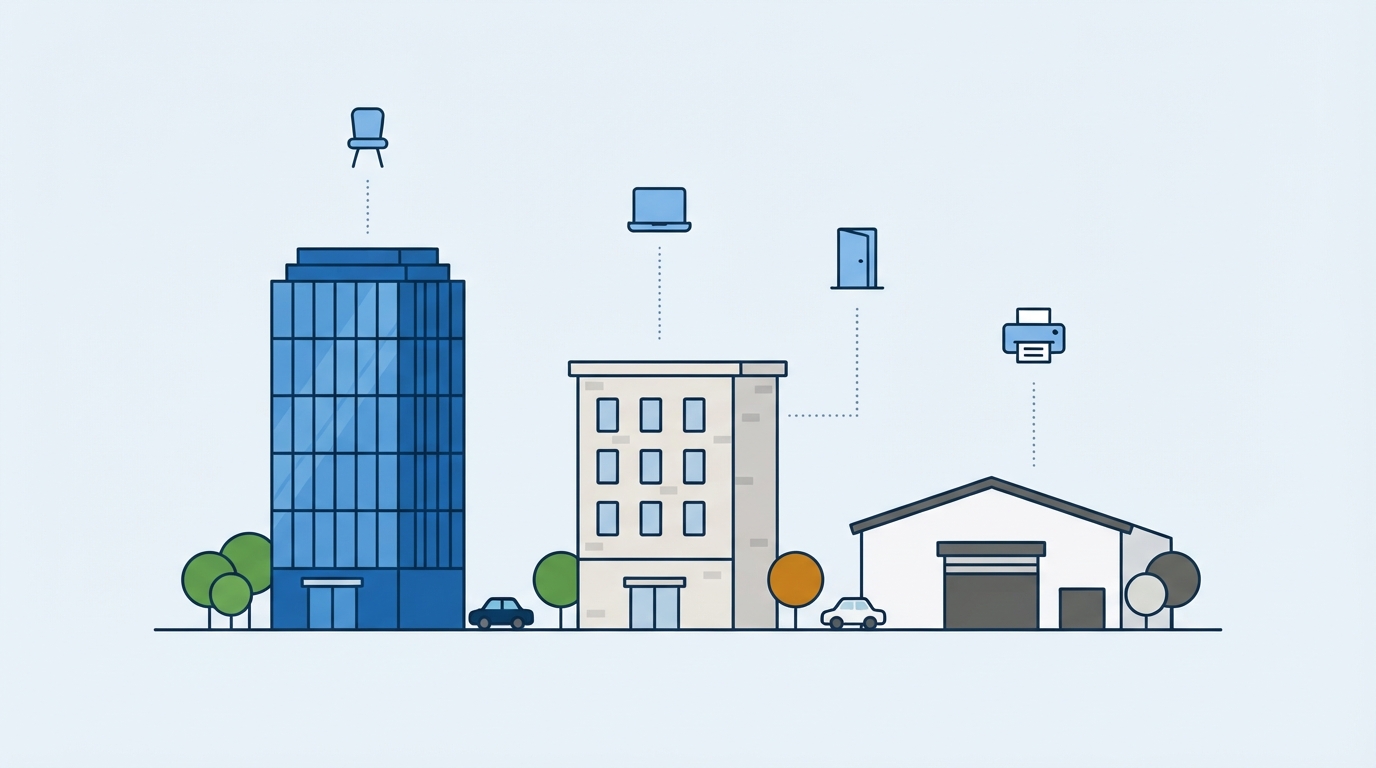
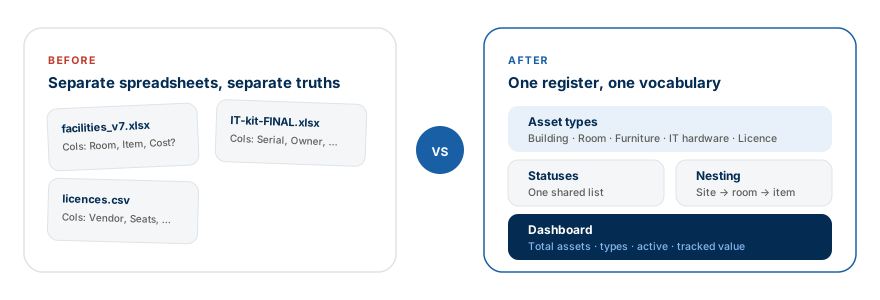
Harbourline runs three commercial sites and everything inside them: 1,412 assets across furniture, IT hardware, rooms and software licences. Today that lives in three spreadsheets that disagree. Facilities cannot say which floor a desk is on. Finance needs a total asset value for the insurance renewal and it takes two weeks to produce. Nobody wants a six-month system project. They want a register they can start using this week.
→ The big metaphor: a library, not a filing cabinet
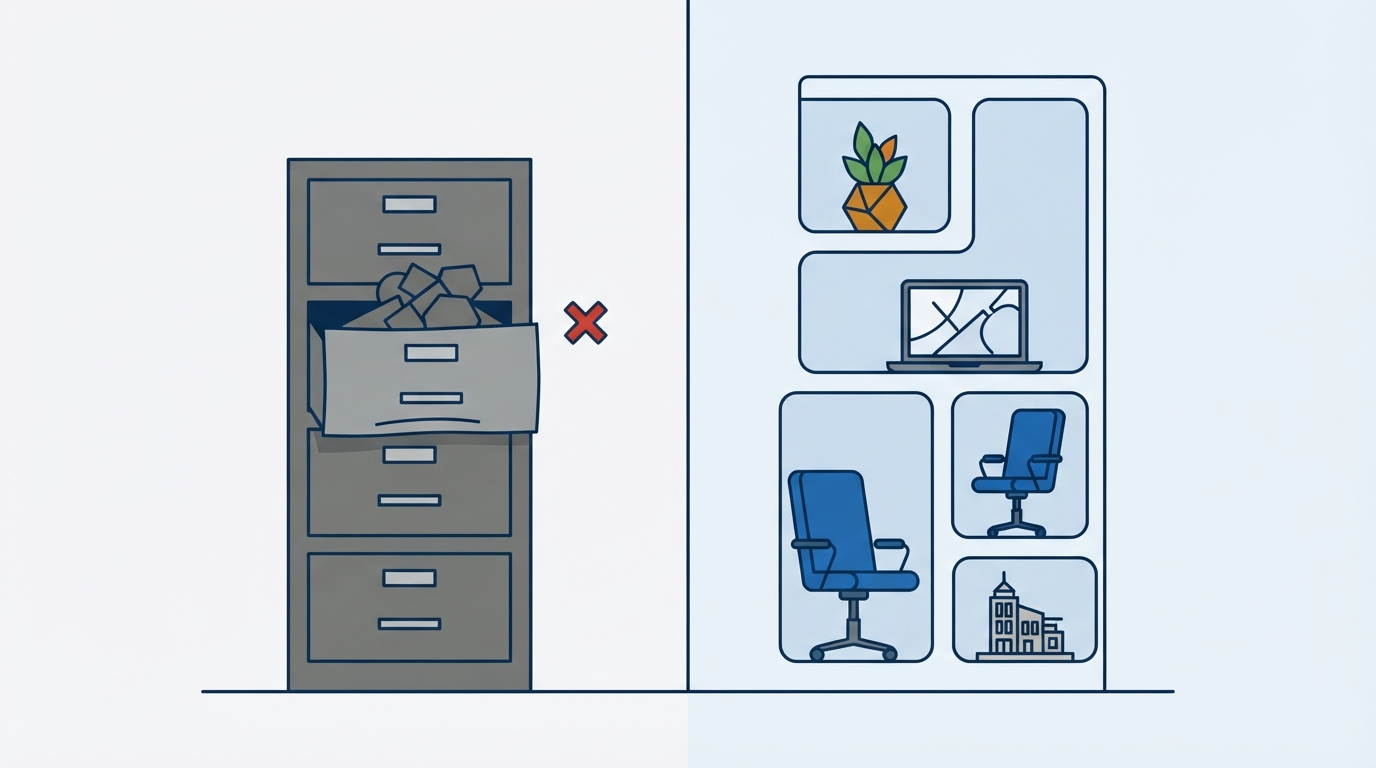
A filing cabinet has fixed drawers. If you own something that does not fit a drawer, tough. A library instead decides what kinds of things it holds and what you record about each kind. Any new kind of thing then just needs a new catalogue card design. Foundry AssetHub works the same way:
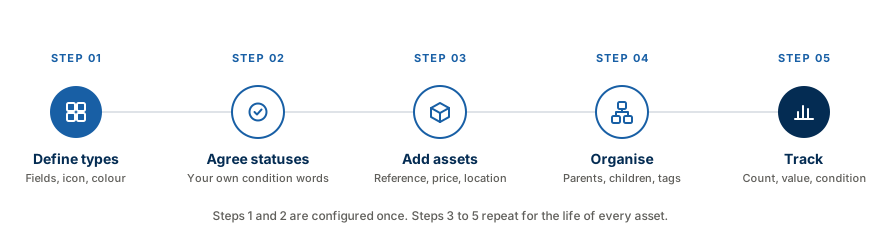
Stage 1
Design the catalogue cards
An asset type says what a "Building" or a "Laptop" record looks like: which fields it carries, and whether it can hold things inside it.
Stage 2
Agree the condition words
Statuses are the small shared vocabulary ("In service", "In repair", "Retired") that everyone uses instead of inventing their own.
Stage 3
Put things on the shelves
Each asset is a record filled in against its card.
Stage 4
Arrange the shelves
Each asset is placed inside its parent: building, room, desk.
Stage 5
Read the catalogue back
Because everything used the same cards and the same words, the dashboard can count and total it without anyone adding up spreadsheets.
→ Where you are going
Stage 0 · Before anything else
0 Get oriented
Sign in, learn the four things in the sidebar, and understand why the app looks almost empty on day one. It is meant to. You have not told it what you own yet.
Why this exists
Foundry AssetHub gives each organisation its own separate workspace, reached by its own web address and hosted in the UK. Signing in is how it knows which register to show you. Harbourline never sees another organisation's assets, and no one else sees Harbourline's.
1 Signing in
Your workspace lives at its own web address, which you choose at signup; Harbourline's is harbourline.foundry-assethub.app. Open it and sign in, either through your organisation's single sign-on or with your email and password, whichever your organisation has set up.
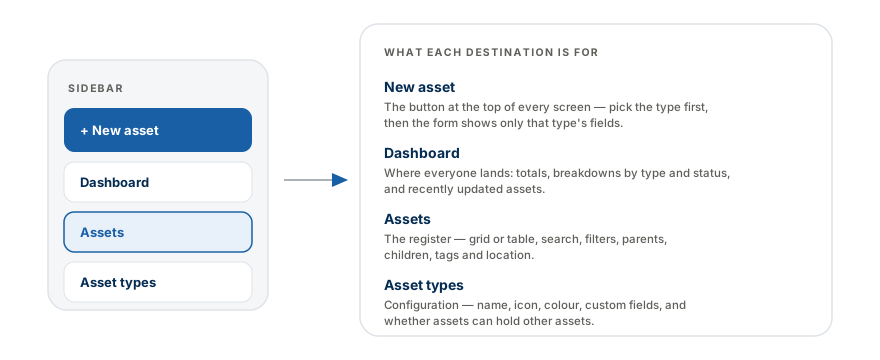
The whole product is four destinations. Learn them once and you are never lost:
Sidebar · top
New asset
The primary button. It is at the top because adding records is the thing you will do most often.
Sidebar · 1
Dashboard
Where you land. Counts, tracked value, breakdowns by type and status, and what changed recently.
Sidebar · 2
Assets
The register. Every record, searchable and filterable. Shows a live count next to the name.
Sidebar · 3
Asset types
The configuration. Where you define what kinds of things exist and what they record.
Day one looks empty, and that is correct
A brand new workspace has no types, so it has no assets, so every dashboard number is zero. Do not go looking for a demo dataset. Go to Asset types and describe the first kind of thing you own.
Open your organisation's Foundry AssetHub web address, the one you chose at signup.
Sign in with single sign-on or with your email and password; either way you land on the Dashboard.
Tip: bookmark the dashboard, not the sign-in page. You will be sent to sign-in automatically whenever your session has expired.
Open Dashboard, Assets and Asset types, and note the New asset button above them. Those are the four destinations.
Note the count badges beside Assets and Asset types. They are your fastest sanity check later.
Collapse the sidebar with the chevron on its edge if you want more room; it stays collapsed.
What comes next
Nothing else in Foundry AssetHub works until at least one asset type exists. You literally cannot create an asset without one. Stage 1 is that.
Stage 1 · Configure once
1 Define your asset types
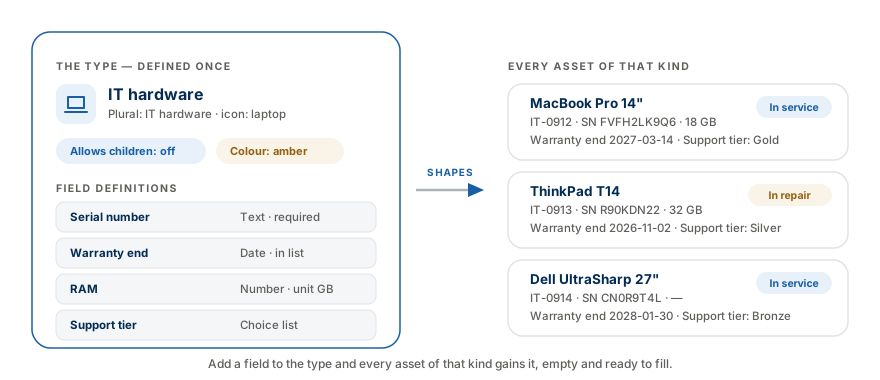
An asset type is the blueprint for one kind of thing you own. It decides the fields every asset of that kind carries, the icon and colour it wears, and whether it can hold other assets inside it.
Why this exists
Many asset systems fix their columns in advance, so tracking a new kind of thing means a developer and a release. Foundry AssetHub is schema-light on purpose: you describe the shape, and the same product manages buildings, chairs, laptops and licences without any code change.
Metaphor
A type is a catalogue card design. You are not filling anything in yet. You are deciding which blanks the card has, and in what order.
1 What a type is made of
Asset types → New type
Part of the type
What it does
Harbourline's "IT hardware"
Name
What this kind of thing is called throughout the app
IT hardware
Plural name
Nicer copy in lists and counts; optional
IT hardware
Description
A note to whoever adds assets later
Laptops, monitors and peripherals issued to staff
Icon
Picked from a set: building, door, chair, laptop, server, monitor, phone, printer, car, wrench and more
laptop
Colour
The accent used on cards, badges and the dashboard bar
Amber
Allows children
Whether assets of this type can contain other assets
Off; a laptop holds nothing
Fields
The custom attributes this kind of thing records
Serial number, warranty end, RAM, support tier
2 The seven field types
Each field you add has a type, which decides the input people see and how the value is displayed back:
Field type
Good for
Extras
Text
Serial numbers, model names, supplier
None
Long text
Condition notes, access instructions
None
Number
Capacity, floor area, RAM
Optional unit suffix: sqm, GB, kg
Currency
Replacement cost, annual licence fee
Formatted as money
Date
Warranty end, next service, renewal
None
Yes / No
Under support, PAT tested, insured
None
Choice list
Support tier, ownership, condition grade
You define the options
Every field can also be marked required, given help text, and flagged to show in list, which surfaces it on the compact asset card so you see it without opening the record.
3 How Harbourline chose their five
The tempting mistake
One type called "Asset" with 30 fields
Most fields blank on most records
Nobody knows which fields apply to what
Dashboard by-type chart shows one bar
VS
What they did instead
Building, Room, Furniture, IT hardware, Licence
Three to five fields each, nearly all filled
Building and Room allow children; the rest do not
The by-type chart is instantly readable
Decide 'Allows children' deliberately
"Allows children" is the one setting worth thinking about before you add records. Ask: would anyone ever say "this is inside that"? Buildings and rooms, yes. A software licence, no. You can change it later, but assets already nested under a type you switch off will need rehoming.
Write down every distinct kind of thing you own. Stop at about eight.
Beside each, write the two or three facts you actually need to know about it.
Mark which ones can physically contain another thing on your list.
Tip: if two kinds of thing would record identical fields, they are probably one type with a choice-list field to tell them apart.
Go to Asset types and select New type.
Give it a name, an optional plural and a one-line description.
Pick an icon and a colour; these become how you recognise it everywhere.
Set allows children if this kind of thing can contain others.
Save. It appears immediately in the types grid with a count of zero assets.
Tip: setting up types is usually an admin task. Other roles can add assets without being able to change the configuration.
Add a field, choose its field type, and label it in the words your team already uses.
For numbers, set the unit ("sqm", "GB") so the value reads correctly everywhere.
For choice lists, enter the allowed options; this is what stops free-text drift.
Mark the one or two most identifying fields as show in list.
Mark only genuinely mandatory fields as required; over-requiring stalls data entry.
Tip: you can come back and add a field at any time. Every existing asset of that type picks it up, empty, ready to fill.
Work through the kinds of thing you listed, largest and most numerous first.
Give related types related colours so the dashboard reads as groups.
Resist adding a type you are not going to record at least ten of.
What comes next
Your types describe what things are. Stage 2 gives everyone the shared words for what condition they are in.
Stage 2 · Configure once
2 Agree your statuses
A status is the condition an asset is in, chosen from a short shared list rather than typed freehand. It is the smallest piece of configuration in Foundry AssetHub and quietly the most valuable.
Why this exists
The moment condition is free text, you get "broken", "BROKEN!!", "out of order" and "n/a - see note" describing the same shelf. Nothing can be counted. A fixed status list means the dashboard can tell you, truthfully, how many things are out of action right now.
Metaphor
Statuses are traffic lights. Three or four colours everyone reads the same way at a glance. Add a fifth and a sixth and people start hesitating at the junction.
1 What a status carries
Part
What it does
Name
The word shown on every asset badge and in every filter
Colour
Drives the badge colour and the segment colour in the dashboard's status bar
Description
Optional; the tie-breaker for when two statuses could both apply
2 Where statuses actually live
There is no separate statuses screen, and that is deliberate. You create and edit statuses from the status picker on the asset form, at the moment you discover you need one. The picker lists every existing status and offers Create a status below, so the first person to hit "this one is in repair" adds that word once and everybody inherits it.
New asset→Classification → Status→Create a status below
They are then visible on the Dashboard under By status, alongside a live count of how many assets currently sit in each one. That panel is also where you delete one.
Read this stage as a conversation, not a screen
The work of stage 2 is agreeing the words, which happens away from the keyboard. Typing them in takes seconds and happens inside stage 3.
3 Harbourline's three words
Status 01
In service
The asset is where it should be and doing its job. The overwhelming majority of records.
Status 02
In repair
Temporarily out of action but still owned and still counted in tracked value.
Status 03
Retired
No longer in use. Kept on the register as a record rather than deleted.
The test
Would anyone act differently?
If two proposed statuses would never change what anyone does, they are one status with a note.
Deleting a status is permanent
Statuses can be deleted from the dashboard's By status panel, and Foundry AssetHub will ask you to confirm. Prune early while the register is small. Once a thousand assets are pointing at a status, removing it is a decision, not a tidy-up.
Ask each team what conditions they currently record, in their own words.
Collapse synonyms ruthlessly, aiming for three or four words total.
For each, write the one-line description that settles arguments.
Give the healthy status a calm colour and the problem status a warm one.
Give retired or archived states a neutral grey so they recede.
Check the dashboard status bar afterwards; that stacked bar is the real test.
Tip: avoid using your brand blue for a problem status. On the dashboard it will read as "normal" at a glance.
What comes next
The thinking is done. Everything from here is the everyday loop, and your agreed status words get typed in for the first time as you add the first asset.
Stage 3 · Every day
3 Add assets to the register
This is where the work actually happens. Every laptop that arrives, every desk that is delivered, every licence that is renewed becomes a record here, and the form reshapes itself around whichever type you pick.
Why this exists
An asset register is only as good as its habits. Foundry AssetHub puts New asset at the top of the sidebar on every screen because the register stays true only if adding to it is faster than emailing someone about it.
1 What every asset records
Assets → New asset
Regardless of type, every asset carries the same core details, plus whatever custom fields its type defines:
Detail
What it is for
Asset type
Chosen first; it determines the rest of the form
Name
How a human refers to it: "MacBook Pro 14"", "Helix HQ Tower"
Reference
Foundry AssetHub's own tag for the record: assigned automatically, shown read-only when you edit, and searchable
Description
Free text for anything the fields do not cover
Status
Its current condition, from the list you agreed in stage 2
Location
Where it physically is, when there is no parent asset to say so
Purchase price
What it cost; this is what rolls up into tracked value
Parent asset
Optional; the asset this one sits inside (covered in stage 4)
Tags
Free-form labels for the cuts your types do not capture
Custom fields
Whatever its type defines: serial number, warranty end, RAM…
Name, reference, status, location, price and tags are on both forms. Only the custom fields change.
2 Finding things again
The Assets screen is built for the moment someone asks "where is IT-0912 and what state is it in?". You have four tools, and they combine:
Tool 01
Search
One box across name, reference, location and tags. The fastest route when you know any identifying string.
Tool 02
Filter by type
Narrow to one kind of thing ("show me only licences") before scanning.
Tool 03
Filter by status
The audit view: everything currently in repair, across every type at once.
Tool 04
Grid or table
Grid for recognising things by colour and icon; table for dense reconciliation work.
Deleting is permanent
Deleting an asset asks for confirmation and cannot be undone. For things you no longer use but still own, set the status to Retired instead. You keep the record, and it still counts in your totals.
Select New asset from the sidebar; it is available from any screen.
Choose the asset type first; the custom fields appear once you do.
Fill the name, then the type's own fields.
Set the status and, if it does not sit inside another asset, the location.
Enter the purchase price if you want it counted in tracked value.
Save. You land on the asset's detail page.
Start with whichever type you own most of. For Harbourline, that is furniture.
Get name, type and status right on every record; treat other fields as a second pass.
Watch the sidebar count climb; it is the fastest confirmation you are making progress.
Tip: if the records already live in spreadsheets, import them in bulk rather than typing them in one at a time.
Tip: a register with 1,400 partly-filled records beats one with 60 perfect ones. Completeness first, depth second.
Open a record you just created, note its reference, and search for it.
Clear the search, filter to one type, then add a status filter on top.
Switch between grid and table so you know which you prefer for which job.
What comes next
You now have a flat list of things. Stage 4 turns it into a map of what is inside what.
Stage 4 · As things move
4 Organise: hierarchy, locations and tags
A flat list tells you what you own. Nesting tells you where it is, what it belongs to, and what leaves the building when the building goes.
Why this exists
"We own 340 chairs" is not an answer anyone can act on. "Level 4 of Helix HQ holds 26 desks and 31 chairs, one of which is in repair" is. Hierarchy is what turns a count into a map.
Metaphor
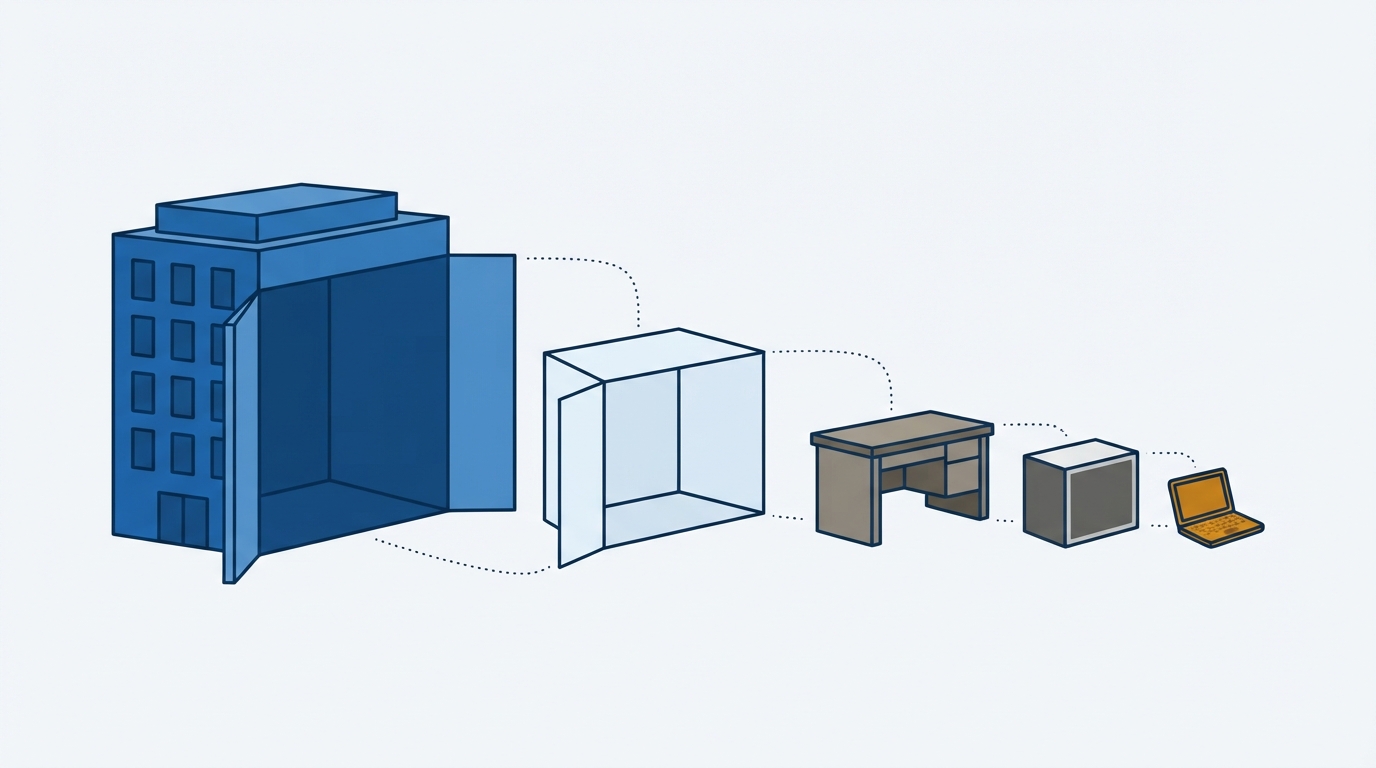
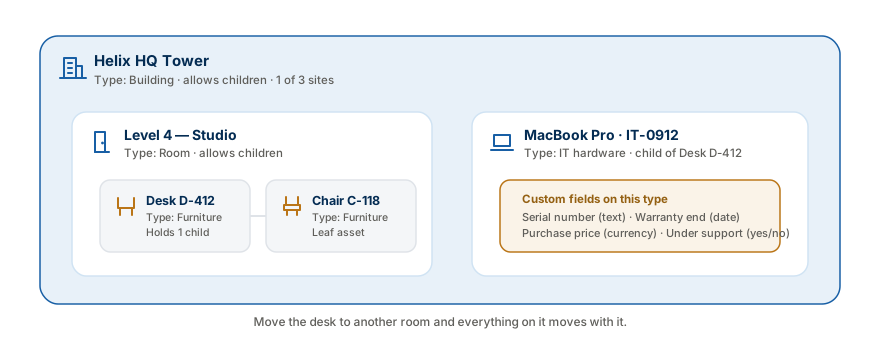
Assets are nesting dolls. A building contains rooms, a room contains desks, a desk holds a laptop. Each one is a complete thing in its own right and a container for the next.
1 Setting a parent
An asset's parent is set on the asset itself, when you create or edit it. Only types with allows children switched on can be chosen as a parent, which is why that switch mattered back in stage 1.
Helix HQ Tower→Level 4 — Studio→Desk D-412→MacBook Pro
Open any asset and its detail page shows the full chain above it and everything sitting directly below it, each one a link. Following the chain up and down is how you answer location questions without a floor plan.
2 Location versus parent
Use a parent when…
The container is itself an asset you track
You want the child to move with it automatically
You want to see "what is in here?" from the container
OR
Use location text when…
The place is not something you own or track
It is offsite, in transit, or with a supplier
You only need it searchable, not structural
3 Tags for the cuts your types miss
Types answer "what kind of thing is this?" and hierarchy answers "where is it?". Tags handle everything else: the temporary, cross-cutting groupings that would be absurd as a type:
Good tag
2027-refresh
Everything earmarked for the next hardware refresh, across three types.
Good tag
insured-separately
The handful of high-value items on their own policy.
Good tag
leased
Owned by someone else but in your care, a fact no single type captures.
Bad tag
laptop
That is a type, not a tag. If you find yourself tagging the kind of thing, make a type.
Add the buildings or sites first; there are usually only a handful.
Add rooms or zones next, each with its building as parent.
Only then add the items that live in them.
Tip: doing it in this order means you never have to go back and re-parent anything.
Edit an item and set its parent to the room or desk it sits in.
Open the parent and confirm the child now appears in its list.
Click back up the chain from the child to the building to check it reads correctly.
Pick one casing and stick to it; lower case with hyphens travels best.
Write the agreed list somewhere your team will see it.
Review tags once a quarter and retire the ones that stopped meaning anything.
What comes next
Everything you have built now pays out. Stage 5 is the screen you did all this for.
Stage 5 · Always on
5 Track value and condition
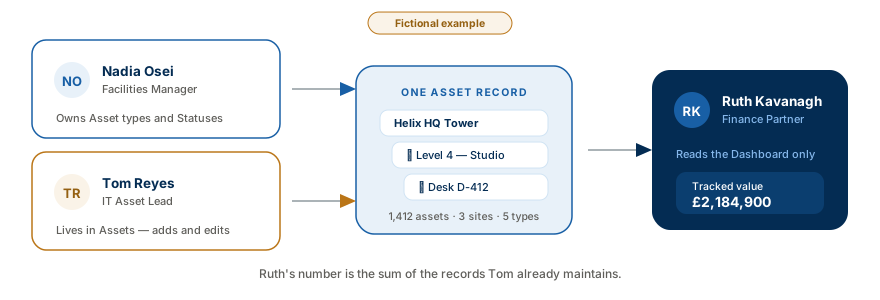
The dashboard does not ask you for anything. It reads the register you have been maintaining and answers the four questions people keep asking you by email.
Why this exists
Nobody maintains an asset register for its own sake. They maintain it so that at insurance renewal, at audit, at budget season, the number is ready when they need it. This screen is that number, and it is derived, never typed.
1 The four headline numbers
Tile 01
Total assets
Every record on the register. The honest measure of how complete your rollout is.
Tile 02
Asset types
How many kinds of thing you have described. Should stabilise early and stay there.
Tile 03
Active
How many are actually in service right now. The gap against total is your problem list.
Tile 04
Tracked value
The sum of purchase prices, formatted as currency. This is the number finance asks for.
2 The two breakdowns
Assets by type is a ranked bar list in each type's own colour, so you can see at a glance whether your register is balanced or whether one team has loaded everything and another has loaded nothing. Each row links straight through to the register.
By status lists each status with its live count, then draws them as a single stacked bar. A widening warm segment is the earliest signal that maintenance is falling behind, often before anyone reports it.
Nothing on the dashboard is typed in by hand. Every figure comes from the records underneath it.
3 Recently updated
The right-hand panel lists the assets that changed most recently, newest first, each with its type, location and status. It shows what changed most recently. It isn't a full change history, but it's the quickest way to spot a data-entry mistake while it's still fresh.
A zero on this screen is information
If tracked value looks far too low, people are not entering purchase prices. If one type's bar is flat, that team has not started. Treat the dashboard as a rollout progress report first, and a finance report second.
Compare the by-type bars against what you know you own.
Chase whichever type is obviously under-loaded.
Check tracked value is climbing at roughly the rate you expect.
Note the size of the "in repair" segment this month.
If it has grown, filter the register by that status to see what is stuck.
Act on the list rather than the number.
Give them read-only access and show them the dashboard once, in person.
Agree that tracked value is the number, and that it comes from purchase prices.
When someone needs a file, export the register instead of rebuilding a spreadsheet by hand.
What comes next
That is the full journey. The checklist pulls all five stages into one list you can work down in an afternoon.
End to end
Harbourline, start to finish
The whole journey as one list. Work down it and you will have a register that answers questions instead of raising them.
Sign in at your organisation's web address.
Open Dashboard, Assets and Asset types once each, and find New asset.
List your kinds of thing, then create a type for each.
Add three to five fields per type; flag two as show-in-list.
Set "allows children" only where nesting is real.
Agree three or four condition words with the teams.
Give each a meaningful colour and a tie-break description.
Load your highest-volume type first.
Import existing spreadsheets rather than retyping them.
Name, type and status on every record; depth second.
Enter purchase prices so tracked value means something.
Create containers before contents: sites, then rooms, then items.
Set parents; walk one chain end to end to check it.
Agree a tag convention and write it down.
Read the by-type bars weekly during rollout.
Watch the status bar monthly thereafter.
Give finance read-only access and point them at tracked value, then retire the spreadsheet.
Help
? FAQ
Common questions, answered using the fictional Harbourline example.
Add it to the asset type and every asset of that kind gains it, empty and ready to fill. You don't need a developer or a data migration. This is the whole reason the product is schema-light rather than fixed-column.
Parent is structural: the container is itself an asset you track, and the child moves with it. Location is free text for places you do not track as assets: offsite storage, a supplier's workshop, in transit. Use a parent when you would ever want to ask "what is in here?".
Set its status to Retired instead. Deletion is permanent and removes the record entirely. A retired record still tells you what you had and what it cost, which is exactly what an auditor will ask for.
Between three and eight is a good starting point for most organisations. If two candidate types would record the same fields, make them one type with a choice-list field. If a type would hold fewer than ten assets, it is probably a tag or a field value, not a type.
Replace Harbourline's types with vehicles and trailers, or lab equipment and consumables, or servers and licences. The Define types → Agree statuses → Add assets → Organise → Track path does not change. Only the words on the catalogue cards do. The homepage's fictional Fenmoor College example uses the same path for lab equipment, minibuses and software licences.
It is the sum of the purchase prices entered on individual assets. Nothing is typed on the dashboard itself. If the figure looks low, the cause is almost always assets saved without a price, not a calculation problem.
Yes. Import assets in bulk from a spreadsheet, then tidy up types and statuses as you go. You can also export the register whenever someone needs a file.
Yes. Give them a read-only role. They see the dashboard and the register, but can't change records.
In the UK. Each organisation has its own separate workspace. See our Privacy policy and Terms.